Metal Detactor

Posted by Unknown Senin, 05 Agustus 2013 0 komentar
Have you ever wanted to do more with your Android without joking around like real detecting metal with them !
Here is the thing that you needed Metal detector uses its high sensitive theory and put it toghter to detect Metals by just bringing your android phone near Metals NO JOKING !
what it really do is
This app measures magnetic field values using the magnetic sensor that is built into the phone. The magnetic field level(EMF) in nature is about 49μT(microtesla) or 490mG(milligauss); 1μT = 10mG. If there is any metal in the area, the strength of the magnetic field should increase. Among other uses, it can be helpful in finding electrical wires in walls (like a stud finder) and metal in the ground.
Usage is simple: Open this app on your device, and move it around; The magnetic field values will constantly fluctuate;

The accuracy depends entirely on the sensors in your device. Note that the magnetic sensor is affected by electronic equipment (TVs, PCs, etc.) due to electromagnetic waves. This is not a bug in the app.
If this app does not work properly, it may mean that your phone's sensors are damaged, broken or non-existent. To initialize the sensors, point your phone up towards the sky and move it in a figure 8 pattern.
Sometimes a leather case with a magnetic "snap" can cause unwanted results. Remove the case to increase accuracy.
Download Links
I could only find it in PlayStore but if you want
to save its APK just send it by App sender to your
pc ;)

Baca Selengkapnya ....

Google Timer

Posted by Unknown 0 komentar
The desktop Google Search has a cool feature: search for [set timer for 5 minutes] and you'll see this interactive timer box. You can stop the timer, reset it and Google even has a notification sound you can disable.


Here's a video for a 15 seconds timer:


You can search for [set timer for 30 seconds], [set timer for 10 minutes and 10 seconds], [set timer for an hour and a half]. You can also use shorter queries: [timer for 30 seconds], [timer 30 seconds], [timer 30 sec], [timer 23 hours 59 min 59 sec].

If you close the search page, Google shows a warning: "Leaving this page will stop your timer".


Click "reset" and it will start again. Click the volume icon to mute sound notifications. Click the timer and you can edit it (press Enter when finished):


You can also search for [timer 2pm], [timer 5:30], [timer 2pm tomorrow], [timer 2pm Thursday], but it doesn't work well everywhere. In Europe it uses GMT time, not the local time.

{ via Search Engine Roundtable and Reddit}

Baca Selengkapnya ....

Bluetooth App Sender

Posted by Unknown Minggu, 04 Agustus 2013 1 komentar
Let me Interduce you to a Great App around .

have you ever wanted to install and play a App in your Android that other Android have or wanted to Send a App to another device but you cant because you dont have its Downloaded APK or  downloaded it from Playstore so this is your App.
Bluetooth App Sender is a app that send any App installed on your device to any other Android device by selecting it and sending it by Bluetooth .


And if you want a app from another device just select this app (Bluetooth app sender ) from the list and send it to the android device and then send what ever app you want from the device .
The great thing is that you don't need this app installed on the other device to send app to them what is need is just a Bluetooth connection .


Download link :

Baca Selengkapnya ....

App Ops: Android's Hidden Permission Manager

Posted by Unknown 0 komentar
App Ops is a hidden application activity in Android 4.3 that lets you manage the permissions used by apps. It was found by Android Police and there's a Google Play app that launches the permission manager (no root required).

I tested App Ops Starter on my Nexus 7 (2012) and it works. There are 4 permission groups: location, personal (contacts, calendar, call logs), messaging (read/write/send SMS) and device (notifications, camera). Each tab shows a list of applications sorted by the time when they last used one of the permissions. App Ops also shows the permissions used by each app.


You can disable permissions for each app you've installed and even for system apps. Sometimes disabling permissions didn't have any effect, other times it worked. For example, I disabled the "read clipboard" permission of the Google+ app and the application no longer suggested the link I copied to the clipboard. I disabled the "location" permission of Google Maps, but the app could still detect my location (I had to disable the Play Services "location" permission to prevent Google Maps from finding my location, but this affects other apps). For now, Android apps aren't optimized for the permission manager and disabling permissions could have unexpected effects: the apps might crash.

Android's permission system encourages developers to add as many permissions as possible, even if they don't currently need them. Maybe they'll use them in the future, so it's better to add them and make sure that the app updates automatically. Android's permissions are all-or-nothing, few bother to read them, even fewer understand them. Google should have done a better job here: encourage developers to use permissions sparingly, allow users to revoke permissions, add opt-in permissions like in iOS. Maybe App Ops will fix some of these issues when it will be officially available, probably in Android 5.0.

Baca Selengkapnya ....

Nexus 7 Facts

Posted by Unknown 0 komentar
Nexus 7 is:

- the first Nexus tablet

- the cheapest most affordable Nexus device

- the first device shipped with Android Jelly Bean

- the first Android tablet that made a significant number of developers to optimize their apps for tablets

- the most popular Nexus device ever sold (7 million tablets sold in one year)

- the Nexus device with the biggest market share (10% of all the Android tablets)

- the most popular Asus tablet

- the only Google Play device available in all the 10 countries where you can buy devices from the Play Store

- the only Google Play device available in India

- the best-value Android tablet: you won't find a tablet that costs less than $230 and offers a high-quality screen, powerful SoC, access to the Google Play Store and the latest OS updates

- the first Nexus device that has the same name as the predecessor

- the Android tablet with the highest-density display (the new Nexus 7 - 322 PPI)

- the first 7-inch 1920x1200 tablet (the new Nexus 7).

Baca Selengkapnya ....

20 Things to Do Using YouTube's Embedded Player

Posted by Unknown 0 komentar
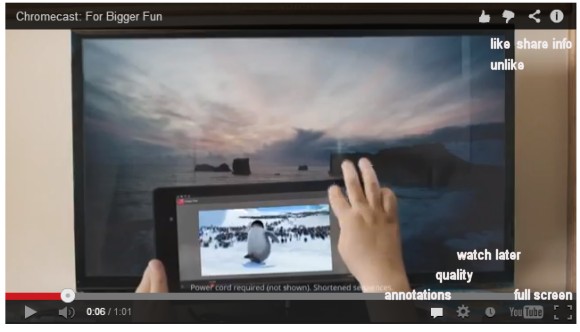
Here are some things you can do from an embedded YouTube player:


1. like/unlike the video: use the thumbs up/down buttons from the top-right corner (you need to be logged in).

2. find the video's URL: right-click the video and click "copy video URL". You can also "copy video URL at current time".

3. find the embedding code: right-click the video and click "copy embed code".

4. share the video: use the share button from the top-right corner and click Facebook, Twitter or Google+.

5. read the video's description: click the "i" button from the top-right corner.

6. subscribe to the video's channel: click the "i" button from the top-right corner and then click the "subscribe" button.

7. find the number of views: click the "i" button from the top-right corner.

8. add the video to the "watch later" playlist: click the "clock" button next to the YouTube logo.

9. turn off annotations: click the conversation icon at the bottom.

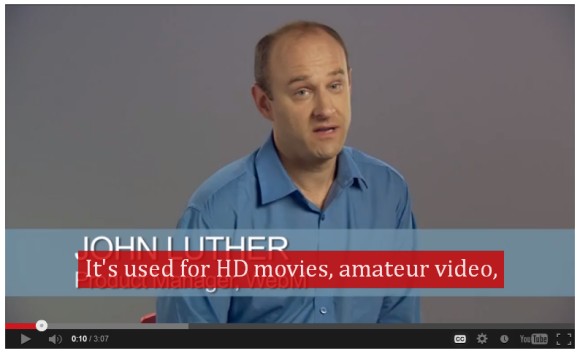
10. enable captions: click the "CC" button. To disable them, click the same button and then "turn captions off".

11. move captions: use drag&drop to change their position.

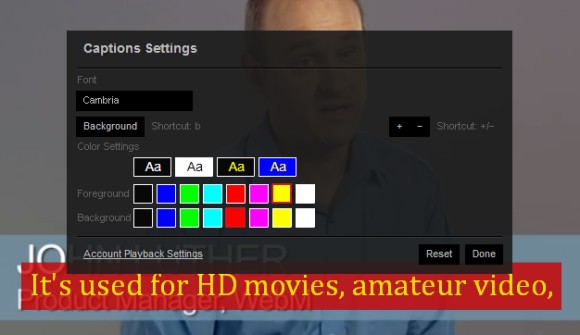
12. change caption size: use + or - keyboard shortcuts. You can also change the caption's foreground/background colors and the font: click the "CC" button and pick "caption settings". Click "background" to enable the caption background (there's also a keyboard shortcut: b). Your settings are saved and YouTube will used them for other videos.


13. translate captions: click the "CC" button, then "translate captions" and pick a language.

14. open the video in full screen mode: click the "full screen" icon next to the YouTube logo.

15. change video quality: click the wheel icon and choose from auto, 144p, 240p, 360p, 480p, 720p, 1080p.

16. change the video's speed (only in the HTML5 player): click the wheel icon and choose from 0.25x, 0.5x, 1x, 1.5x, 2x.

17. check the stats: right-click the video and select "stats for nerds" to see the video's size, the number of frames per second, the number of dropped frames and other useful information.

18. open the video's YouTube page: click the title at the top of the player or the YouTube logo at the bottom.

19. use keyboard shortcuts (most shortcuts only work in the Flash player and they require that the video player has focus):

* k - pause/play the video
* m - mute/unmute the video
* f - full screen mode (Esc to exit)
* j or left arrow - seek backward 3 seconds
* l or right arrow - seek forward 3 seconds
* 0 - jump at the beginning of the video
* 1-9 - seek to the 10% to 90% of the video
* home/end - jump at the beginning/end of the video
* up/down arrows - increase/decrease volume by 5%

20. related videos: at the end of the video, you'll see a list of related videos and you can watch them in the embedded player. Mouse over the thumbnails to find more information about the videos.

Here's a video you can use to test these features:


Baca Selengkapnya ....

YouTube Encourages Sharing Videos

Posted by Unknown 0 komentar
When you watch a YouTube video until the end, YouTube thinks you might want to share it with other people and switches to the "share" tab automatically. The "share" tab has been recently redesigned and now shows more social services at a glance. You can also click "embed" and copy the embedding code.


If you'd like to link to a YouTube video and open the "share" tab by default, just add #action=share at the end of the URL. Here's an example: http://www.youtube.com/watch?v=Ep3iIDDDlaM#action=share.

The embedded YouTube player already includes a lot of features: from the like/unlike buttons, to the share button and the information button that shows the video's description, the number of views and lets you subscribe to the associated channel.

Baca Selengkapnya ....
Trik SEO Terbaru support Online Shop Baju Wanita - Original design by Bamz | Copyright of android ipad.